7 Microsoft 365 Security Myths That Put Small Businesses at Risk
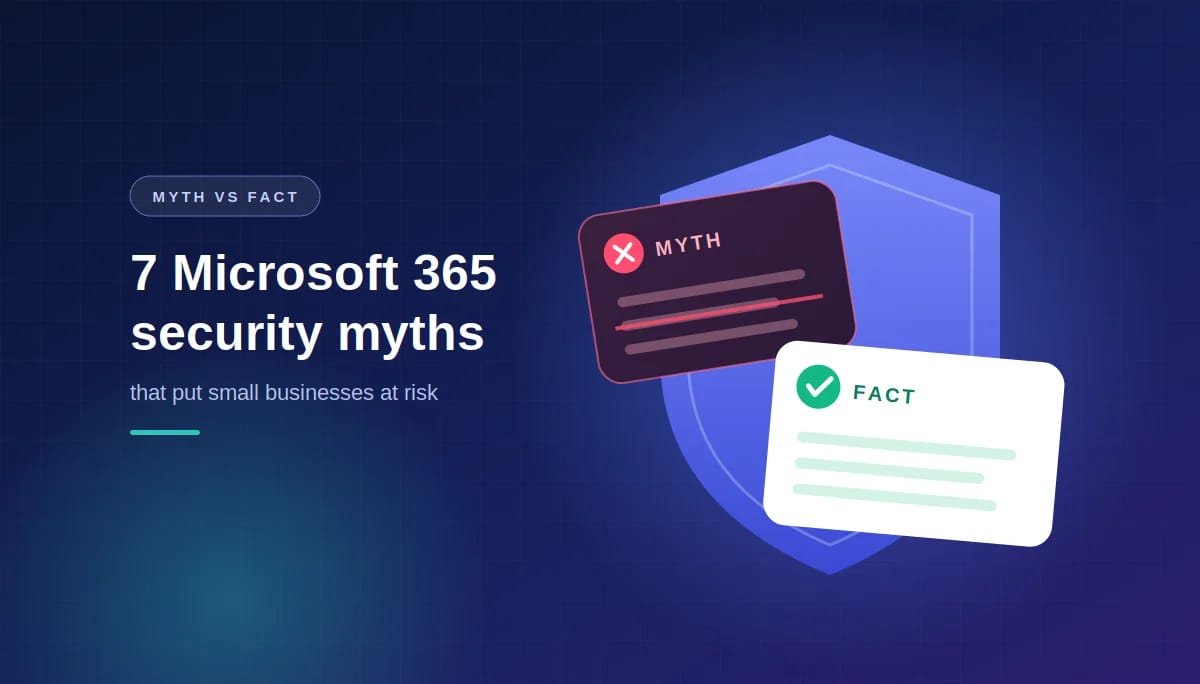
What business owners often believe about Microsoft 365 security, and what’s actually true
Most small businesses that get caught out by a cyber incident weren’t careless. They simply believed something about Microsoft 365 that sounded reasonable but wasn’t true: that Microsoft backs everything up, that MFA makes them untouchable, or that they’re too small for anyone to bother with. The good news is that every one of these myths has a straightforward fix, and most cost little or nothing.
Below are the seven myths we hear most often from small businesses in Ottawa, with the facts behind each one and what to do about it.
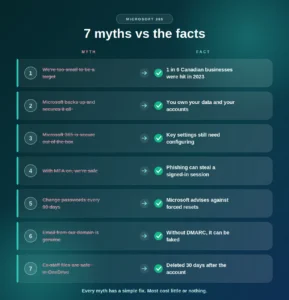
Myth 1: “We’re too small to be a target”
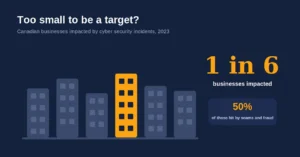
The fact: about one in six Canadian businesses was hit by a cyber security incident in a single year. Statistics Canada found that in 2023, about 1 in 6 (16%) Canadian businesses were impacted by cyber security incidents. The most common method was not sophisticated hacking: among businesses that were affected, scams and fraud were used in half of all incidents.
Most attacks aren’t aimed at a particular company. Criminals send the same phishing emails to thousands of businesses and wait to see who responds, so small businesses are hit precisely because they’re less likely to have defences in place. And when incidents do happen, they’re getting more expensive: Statistics Canada reports that spending on recovery from cyber security incidents doubled to $1.2 billion.
What to do: assume you’ll be targeted, and put the basics in place now rather than after an incident.
Myth 2: “Microsoft backs up and secures everything for us”
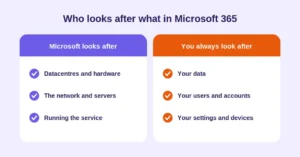
The fact: Microsoft protects the service, but you’re responsible for your data and your accounts. Microsoft’s own shared responsibility model is clear: for all cloud deployment types, you own your data and identities, and you’re responsible for protecting them.
Microsoft looks after the datacentres, the hardware and keeping the service running. But if a file is deleted by mistake, encrypted by ransomware or removed when someone leaves, getting it back is largely your responsibility. Microsoft 365 has recycle bins and version history, but they have time limits. Our guide to whether your Microsoft 365 data is actually backed up explains the gaps.
What to do: treat Microsoft 365 like any other business system, with its own backup and its own security settings.
Myth 3: “Microsoft 365 is secure out of the box”
The fact: some protection is on by default, but many important settings aren’t, especially in older or upgraded accounts. Microsoft’s baseline protection, called security defaults, requires MFA and blocks older sign-in methods. But Microsoft notes that security defaults are only likely to be enabled if your tenant was created on or after October 22, 2019, and that they’re probably not right for organizations with Microsoft Entra ID P1 or P2 licences, which includes Business Premium. Those businesses need their own policies set up instead.
Many small businesses also turn security defaults off to fix a sign-in problem and never turn them back on. Email protection, sharing settings, device security and admin controls all need deliberate setup.
What to do: check your Microsoft Secure Score to see which protections are missing; our guide to what a good Microsoft Secure Score looks like explains how to read it.
Myth 4: “Once MFA is on, we’re safe”
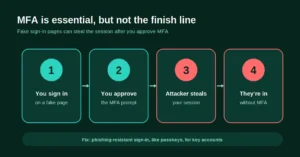
The fact: MFA blocks most attacks, but some phishing sites can steal your signed-in session after you approve it. Microsoft has documented phishing campaigns that stole passwords, hijacked a user’s sign-in session and skipped the authentication process even if the user had enabled MFA. The attacker sits between the user and the real Microsoft sign-in page, and captures the session once the user has signed in.
Microsoft is careful to note that this is not a vulnerability in MFA. MFA is still essential. It’s just not the finish line.
What to do: keep MFA on for everyone, and move the people who handle money and admin accounts to phishing-resistant options such as passkeys. Our guide to why MFA isn’t enough anymore explains how.
Myth 5: “Forcing password changes every 90 days keeps us safe”
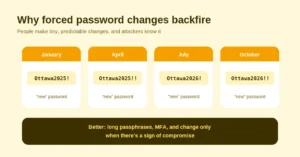
The fact: Microsoft recommends against forced password changes. Its password guidance for administrators says plainly: don’t require mandatory periodic password resets for user accounts. Microsoft explains that password expiration requirements do more harm than good, because people pick predictable passwords, like adding a number or symbol to the old one.
Forced changes also don’t help much in practice, because criminals usually use a stolen password straight away, long before any 90-day deadline.
What to do: encourage long passphrases, require MFA, and change a password only when there’s a sign it’s been compromised.
Myth 6: “If an email comes from our own domain, it’s genuine”
The fact: without DMARC, anyone can send an email that appears to come from your exact address. Email was never designed to check who a message is really from. The Canadian Centre for Cyber Security recommends SPF, DKIM and DMARC working together to protect email domains from being spoofed.
In practice: a bookkeeper receives an email that appears to come from the owner’s own address, asking for an urgent payment to a new supplier. Everything looks right, because the “From” line really does show the owner’s address. Without DMARC, nothing stopped the fake from being delivered.
What to do: set up SPF, DKIM and DMARC for your domain, and confirm any payment change by phone. Our guide to what DMARC is and whether your business needs it walks through it step by step.
Myth 7: “When someone leaves, their files are safe in OneDrive”
The fact: by default, a departed employee’s OneDrive is deleted 30 days after their account is removed. Microsoft keeps it for a default retention period of 30 days, after which it moves to a recycle bin and is eventually gone for good.
If client files or important records lived only in that person’s OneDrive, the business can lose them without anyone noticing until it’s too late. Our comparison of OneDrive, SharePoint and Teams explains where business files should live instead.
What to do: keep business files in SharePoint or Teams channels, and include file handover in every offboarding.
How many of these did you believe?
If one or two of these myths sounded familiar, you’re in good company; they’re common because each one is partly true. Microsoft does protect a lot, MFA does stop most attacks, and small businesses are less likely to be singled out. The risk lies in the gaps between “partly true” and “fully protected.” Closing them is usually a matter of a few settings, a backup and some clear habits, not a large budget.
Common questions about Microsoft 365 security myths
1. Are small businesses really targeted by cyber attacks?
Yes. Statistics Canada found that about one in six Canadian businesses was impacted by a cyber security incident in 2023, with scams and fraud the most common method.
2. Does Microsoft back up my Microsoft 365 data?
Not in the way most people expect. Microsoft keeps the service running and offers recycle bins and version history with time limits, but under its shared responsibility model, protecting your data is your responsibility.
3. Is Microsoft 365 secure by default?
Partly. Security defaults may be on for newer accounts, but they’re often turned off, aren’t meant for Business Premium customers, and don’t cover email, sharing or device settings.
4. Can MFA be bypassed?
Yes, in some cases. Advanced phishing sites can steal a signed-in session after MFA is approved. MFA is still essential, and phishing-resistant methods like passkeys add stronger protection.
5. Should we force staff to change passwords regularly?
No. Microsoft recommends against mandatory periodic password resets, because they lead to predictable passwords. Change passwords only when there’s a sign of compromise.
6. Can someone send email pretending to be from our domain?
Yes, if your domain doesn’t have SPF, DKIM and DMARC set up correctly. DMARC tells other mail servers to block or quarantine fakes.
7. What happens to an employee’s OneDrive when they leave?
With default settings, it’s deleted 30 days after their account is removed, then permanently removed from the recycle bin after a further 93 days.
8. What’s the quickest way to check our Microsoft 365 security?
Look at your Microsoft Secure Score in the Microsoft Defender portal. It lists the recommended security actions you haven’t completed yet.
9. Do we need expensive tools to fix these issues?
Usually not. Most of these fixes are settings already included in Microsoft 365, plus a backup service and clear processes for payments and offboarding.
10. Which myth is the most dangerous?
Believing you’re too small to be targeted, because it leads businesses to skip every other protection on this list.
This article is general information, not legal advice.
Sources
Statistics Canada: Impact of cybercrime on Canadian businesses, 2023 · Statistics Canada: How much is fraud affecting Canadians and Canadian businesses? · Microsoft Learn: Shared responsibility in the cloud · Microsoft Learn: Security defaults in Microsoft Entra ID · Microsoft Security Blog: From cookie theft to BEC · Microsoft Learn: Password policy recommendations for Microsoft 365 · Canadian Centre for Cyber Security: Implementation guidance: email domain protection · Microsoft Learn: OneDrive retention and deletion
Similar
Our newsroom highlights the milestones shaping Shipora and the markets we serve.