How to Secure Work Email on Personal Phones
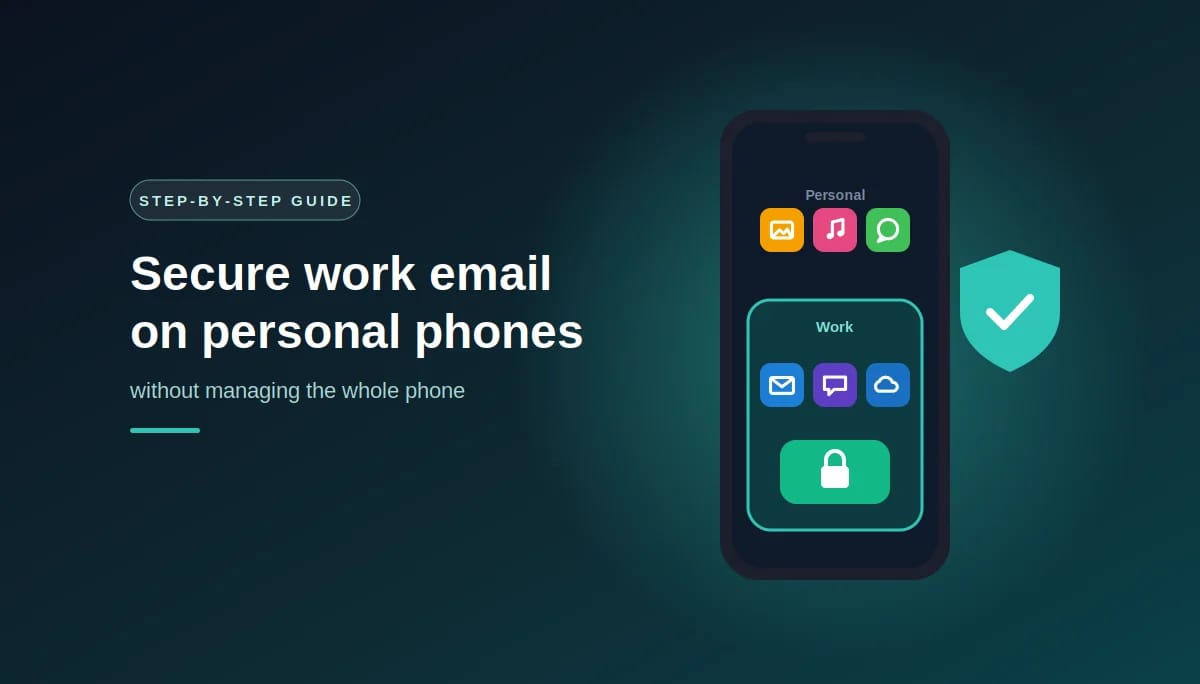
A step-by-step guide to protecting company data on staff phones, without taking control of anyone’s personal device
Most small businesses let staff read work email on their own phones, and most have no control over what happens to that data. The answer is Microsoft Intune app protection policies. They protect company data inside apps like Outlook, Teams and OneDrive, so you can require a PIN, stop work data being copied into personal apps, and wipe company data when someone leaves, without enrolling or managing the phone itself. Paired with a Conditional Access policy, they make sure only protected apps can open company email and files. This guide walks through the setup in six steps.
What you’ll need
- Microsoft 365 Business Premium, or another plan that includes Microsoft Intune and Microsoft Entra ID P1. Business Premium includes both.
- The Microsoft apps on staff phones: Outlook, Teams and OneDrive, plus Word, Excel and PowerPoint if people edit documents on the go.
- On Android, the Intune Company Portal app installed (but not used to enroll the phone). Microsoft notes that the Intune Company Portal is required on the device to receive App Protection Policies on Android.
- About half a day of admin time, plus a short test period with a few staff members.
How it works in one minute
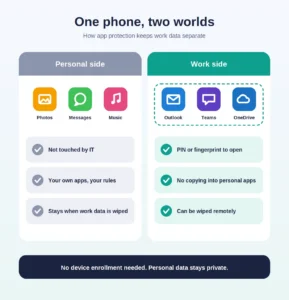
Think of it as a locked room for work data inside the phone. Microsoft explains that app protection policies ensure an organization’s data remains safe or contained in a managed app, and that they apply only in a work context, so company data is protected without touching personal data.
That’s the key difference from full device management. Staff don’t have to hand over control of their phone, and IT never manages their photos, messages or personal apps. Microsoft describes this approach as suited to companies that don’t want to require enrollment of personally owned devices in a device management service.
Step 1: Decide which apps staff can use for work
Start by agreeing on the apps that will hold company data. For most small businesses, that’s Outlook for email and calendar, Teams for chat and meetings, and OneDrive for files, plus the Office apps if needed.
This matters because protection only works in apps that support it. If staff currently read work email in the phone’s built-in mail app, they’ll need to switch to Outlook, which is worth telling them early (see step 5).
Step 2: Create the app protection policy
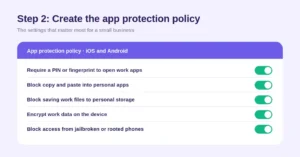
In the Microsoft Intune admin center, create an app protection policy for iOS and another for Android, and assign them to your staff. Microsoft gives examples such as requiring a PIN or fingerprint to access corporate email on a mobile device and preventing users from copying and pasting corporate data into personal apps.
For a small business, we recommend turning on these five settings:
- Require a PIN or fingerprint to open work apps.
- Block copy and paste from work apps into personal apps.
- Block saving work files to personal storage, such as a personal cloud account.
- Encrypt work data on the device.
- Block access from jailbroken or rooted phones.
Step 3: Require it with Conditional Access
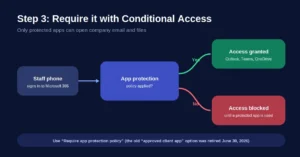
The app protection policy protects data inside the apps, but on its own it doesn’t stop someone from using an unprotected app. Conditional Access closes that gap. In the Microsoft Entra admin center, create a policy for iOS and Android devices with the grant control “Require app protection policy”, so company email and files only open in protected apps.
One important update: Microsoft has retired the older “Require approved client app” option. According to Microsoft, on June 30, 2026, the Require approved client app control moved to a read-only state, and for any new Conditional Access policy, only the Require app protection policy grant should be applied. If your business set this up a few years ago, it’s worth checking that your policies have been updated.
Step 4: Test it with a small group first
Don’t switch it on for everyone at once. Microsoft recommends creating these policies in report-only mode first, so you can see who would be affected before anything is enforced.
Pick two or three people with different phones, ideally one iPhone and one Android, and have them sign in to Outlook and Teams for a few days. Once everything works as expected, turn the policy on for the whole team.
Step 5: Tell staff what changes
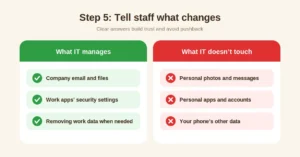
The biggest worry staff have is privacy, so explain clearly what IT can and can’t do. With app protection, IT manages company email, files and the security settings of work apps, and can remove work data when needed. IT doesn’t manage personal photos, messages, personal apps or the rest of the phone.
Also tell them what they’ll notice: a PIN or fingerprint prompt when opening Outlook or Teams, a message if they try to paste work content into a personal app, and, on Android, the Company Portal app needing to be installed. A short email or a five-minute chat at a team meeting prevents most of the pushback.
Step 6: Remove company data when someone leaves
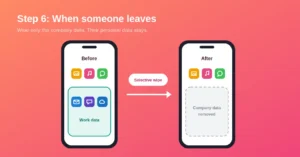
This is where app protection pays off. When an employee leaves, you can wipe the company data from their work apps without touching anything personal. Microsoft confirms you can wipe company data from apps without removing those apps from the device, and do it without requiring users to enroll devices.
Make this part of your standard offboarding checklist, alongside blocking the account and reviewing access. Our guide to who still has access to your Microsoft 365 covers the rest of the process.
Example scenario: a sales manager at a 15-person Ottawa firm resigns and leaves the same day. Her personal iPhone has two years of client emails in Outlook and price lists in OneDrive. Because app protection was in place, the office manager runs a selective wipe from the Intune admin center. The work data is removed from her phone within minutes, while her personal photos, messages and apps are untouched, and there’s no awkward conversation about handing over a personal device.
Common mistakes to avoid
- Setting up the app policy without Conditional Access, so staff can still use the built-in mail app and skip the protection entirely.
- Building new policies on “Require approved client app”, which Microsoft has retired. Use “Require app protection policy” instead.
- Turning it on for everyone without testing, which can lock people out of email on a busy morning.
- Not explaining it to staff, so a sensible security change feels like the company taking over their phone.
- Forgetting about Android’s Company Portal app, which must be installed for the policy to apply.
Common questions about securing work email on personal phones
1. Can we protect work email on personal phones without managing the whole phone?
Yes. Intune app protection policies protect company data inside apps like Outlook, Teams and OneDrive without enrolling the phone, so personal data and settings stay private.
2. Can IT see personal photos or messages?
No. App protection applies only to work apps and company data. Personal apps, photos and messages aren’t managed.
3. Which Microsoft 365 plan do we need?
You need Microsoft Intune and Microsoft Entra ID P1, both included in Microsoft 365 Business Premium.
4. Will staff still be able to use the iPhone or Android mail app?
Not for work email, once Conditional Access requires app protection. They’ll use Outlook, which supports the protection settings.
5. What happens when an employee leaves?
You can run a selective wipe, which removes company data from their work apps while leaving their personal data and the apps themselves in place.
6. Do staff need to install anything extra?
On Android, the Intune Company Portal app must be installed, though the phone isn’t enrolled. On iPhone, the Microsoft apps are usually all that’s needed, along with Microsoft Authenticator for sign-in.
7. Can staff copy work content into personal apps?
Not if you block it in the app protection policy. They’ll see a message explaining that the action isn’t allowed for company data.
8. Is “Require approved client app” still available?
No. Microsoft retired it on June 30, 2026. New Conditional Access policies should use “Require app protection policy”.
9. Should company-owned phones be set up the same way?
Company-owned phones are usually fully enrolled in Intune for device-level control, with app protection added on top. App protection alone is best suited to personal phones.
10. How long does the setup take?
For a small business, typically about half a day to configure, plus a few days of testing with a small group before switching it on for everyone.
This article is general information, not legal advice.
Sources
Microsoft Learn: App protection policies overview · Microsoft Learn: Protect data on personal devices (data leak prevention) · Microsoft Learn: Require approved client apps or app protection policy with mobile devices · Microsoft Learn: Migrate approved client app to application protection policy in Conditional Access
Similar
Our newsroom highlights the milestones shaping Shipora and the markets we serve.