The Laptop Left on the O-Train
A lost-laptop story, and the Microsoft 365 setup that turns a crisis into a 15-minute task
It’s 5:42 on a Thursday evening. Maya, an account manager at a small Ottawa firm, steps off the O-Train at Lyon station, halfway through a phone call. By the time she reaches the street, she realizes her laptop bag is still on the train, heading east.
On that laptop: her email, a year of client proposals, a spreadsheet of client contacts, and a browser that remembers most of her passwords.
What happens next has very little to do with the train, and almost everything to do with how her laptop and her Microsoft 365 account were set up before that evening.
The short answer: when a work laptop is lost or stolen, act within minutes. Block the user’s sign-in, revoke their sessions, and use Microsoft Intune to locate the device and wipe it. If the laptop is encrypted with BitLocker and the files live in OneDrive or SharePoint, the data is protected and nothing is lost. If it isn’t, you may be facing a privacy breach. The difference is entirely in the preparation.
What happens when a work laptop is lost?
Let’s follow Maya’s laptop through two versions of the same evening.
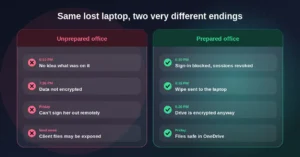
In the unprepared office, Maya calls her manager at 6:10. Nobody knows exactly what was on the laptop. By 7:30, they realize the drive was never encrypted, so anyone who finds it can pull out the hard drive and read the files. There’s no way to sign Maya out remotely, and the laptop isn’t managed, so it can’t be located or wiped. By the following week, the firm is working out whether client information has been exposed, and whether it has to tell those clients.
In the prepared office, Maya makes the same call at 6:10. Within five minutes, her sign-in is blocked, her sessions are revoked, and a wipe command is waiting for the laptop the moment it connects to the internet. The drive is encrypted anyway. On Friday morning, Maya picks up a spare laptop, signs in, and all her files are there, because they were in OneDrive all along.
Same laptop, same train, same evening. A very different outcome. Here’s what the prepared office did, step by step.
What should you do first when a laptop goes missing?
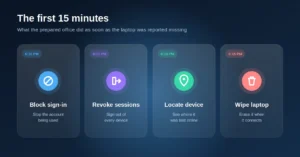
The prepared office worked through four actions in about 15 minutes.
6:10 PM: block sign-in
In the Microsoft 365 admin center, the office manager blocks Maya’s account from signing in and resets her password, so whoever has the laptop can’t use her credentials.
6:11 PM: revoke sessions
This step is easy to miss. A password reset doesn’t always end sessions that are already signed in. Microsoft explains that access tokens last an hour by default and that refresh tokens must be revoked to force a new sign-in everywhere. Revoking sessions in the Microsoft Entra admin center signs Maya out of every device, including the lost one. Our guide on how to know if your Microsoft 365 account has been hacked covers this step in more detail.
6:13 PM: locate the device
Because the laptop is managed in Microsoft Intune, the office can use Locate device, which Microsoft describes as showing the approximate location of a device on a map. Here it shows the laptop was last online near the office that morning, which is useful information, but not enough to recover it.
6:15 PM: wipe the laptop
Finally, the office sends a remote wipe. Microsoft lists this exact scenario: when a device is reported lost or stolen, IT can remotely wipe or lock it to protect sensitive data. The command runs as soon as the laptop next connects to the internet.
Think a device or account may be at risk? We help Ottawa businesses set up device management and encryption, so a lost laptop is a 15-minute task rather than a crisis.
Does encryption protect a lost laptop?
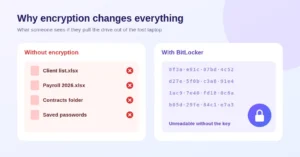
Yes, and it’s the single most important protection. A Windows password alone doesn’t protect the files: Microsoft notes that data on a lost or stolen device can be accessed by running a software-attack tool against it, or by transferring the device’s hard drive to a different device.
BitLocker, which is built into Windows, encrypts the whole drive. Microsoft describes it as addressing the threats of data theft or exposure from lost, stolen, or inappropriately decommissioned devices. Without the key, the drive is just unreadable data. And for laptops joined to Microsoft Entra ID, the recovery key is backed up to Microsoft Entra ID, so the business can always unlock its own devices.
In Maya’s case, encryption meant that even if the laptop never connected to receive the wipe, the files on it stayed unreadable.
Is a lost laptop a privacy breach in Canada?
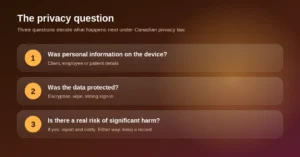
It can be. Under federal privacy law, a breach includes the loss of personal information, or unauthorized access to it. The Office of the Privacy Commissioner’s guidance on mandatory breach reporting explains that if a breach creates a real risk of significant harm, you must report it to the Commissioner and notify the people affected. Either way, you need to keep a record of the breach.
That’s where preparation pays off again. Three questions shape the answer: Was personal information on the device? Was it protected by encryption, a remote wipe and strong sign-in? And is there a real risk of significant harm? For the unprepared office, the honest answers are uncomfortable. For the prepared one, the record is short: device lost, data encrypted, wipe sent, account secured.
Friday morning: back to work
The prepared office’s final advantage shows up the next day. Maya didn’t keep files on her desktop. Her documents lived in OneDrive and the team’s SharePoint site, so when she signed in to a spare laptop on Friday morning, everything was exactly where she’d left it. Our comparison of OneDrive, SharePoint and Teams explains how to set that up.
If Maya’s work phone had been in the bag too, the same thinking applies: with app protection in place, company data can be removed from the phone’s work apps without touching anything personal. Our guide to securing work email on personal phones explains how.
What should you set up before a laptop goes missing?
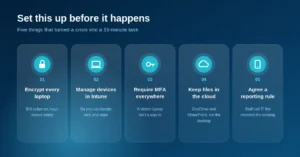
Everything that saved the prepared office was in place before 5:42 that Thursday:
- Encrypt every laptop with BitLocker, with recovery keys stored in Microsoft Entra ID.
- Manage devices in Microsoft Intune, so you can locate, lock and wipe them remotely.
- Require MFA for every account, so a stolen laptop and a remembered password aren’t enough to get in.
- Keep files in OneDrive and SharePoint, not on the desktop, so nothing is lost with the device.
- Agree a simple reporting rule: staff call IT the moment a device is missing, with no blame for reporting.
The lesson
Laptops get left on trains, in taxis and at coffee shops; no policy will stop that entirely. What you can control is whether a lost laptop is an inconvenience or an incident. Encryption, device management, MFA and cloud storage cost little to set up, and they’re all included in Microsoft 365 Business Premium. Put them in place now, and the worst part of losing a laptop is buying a new one.
Maya and her firm are an illustrative example, not a specific client.
Common questions about lost or stolen work laptops
1. What should I do first if a work laptop is lost or stolen?
Report it to IT straight away. IT should block the user’s sign-in, revoke their sessions, and use Intune to locate and wipe the device.
2. Is changing the password enough?
No. Existing sessions can stay signed in for a while, so revoke the user’s sessions as well, to sign them out everywhere.
3. Can we track a lost laptop with Microsoft 365?
If it’s managed in Microsoft Intune, you can use Locate device to see its approximate location on a map, as long as location services are on and it connects to the internet.
4. Can we erase a lost laptop remotely?
Yes, if it’s managed in Intune. A remote wipe restores it to factory settings and removes all data the next time it connects to the internet.
5. Does a Windows password protect the files on a lost laptop?
Not on its own. Someone can remove the drive and read it in another computer, unless the drive is encrypted with BitLocker.
6. What is BitLocker?
BitLocker is the encryption built into Windows. It makes the drive unreadable without the right key, which protects data on lost or stolen devices.
7. Is a lost laptop a privacy breach?
It can be, if it held personal information. If there’s a real risk of significant harm, Canadian privacy law requires you to report it and notify those affected, and you must keep a record either way.
8. Will we lose the files on a lost laptop?
Not if they’re stored in OneDrive or SharePoint. The user can sign in to a new laptop and pick up where they left off.
9. Do we need Business Premium for this?
Business Premium includes Intune for device management and the tools to manage BitLocker centrally, which makes this setup much simpler for a small business.
10. What if a work phone is lost instead?
The same steps apply: block sign-in and revoke sessions, then wipe the device, or remove company data from its work apps if it’s a personal phone.
This article is general information, not legal advice.
Sources
Microsoft Learn: Revoke user access in Microsoft Entra ID · Microsoft Learn: Remote device actions in Microsoft Intune · Microsoft Learn: BitLocker overview · OPC: What you need to know about mandatory reporting of breaches of security safeguards
Similar
Our newsroom highlights the milestones shaping Shipora and the markets we serve.