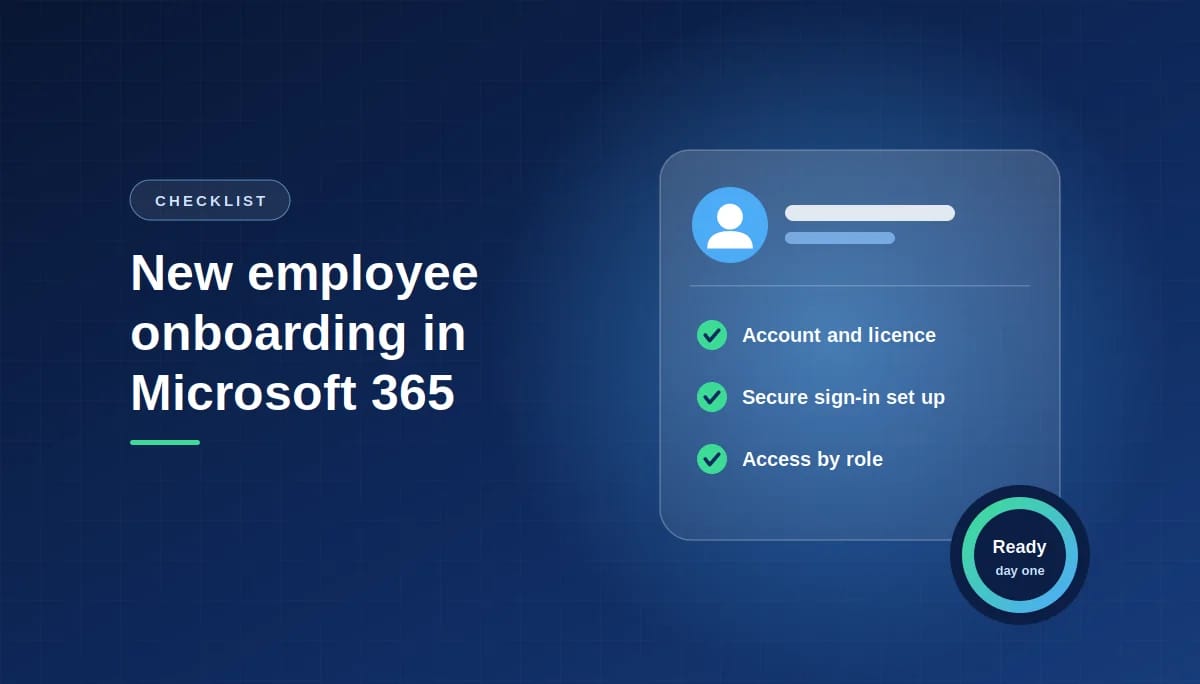
Microsoft 365 New Employee Onboarding Checklist
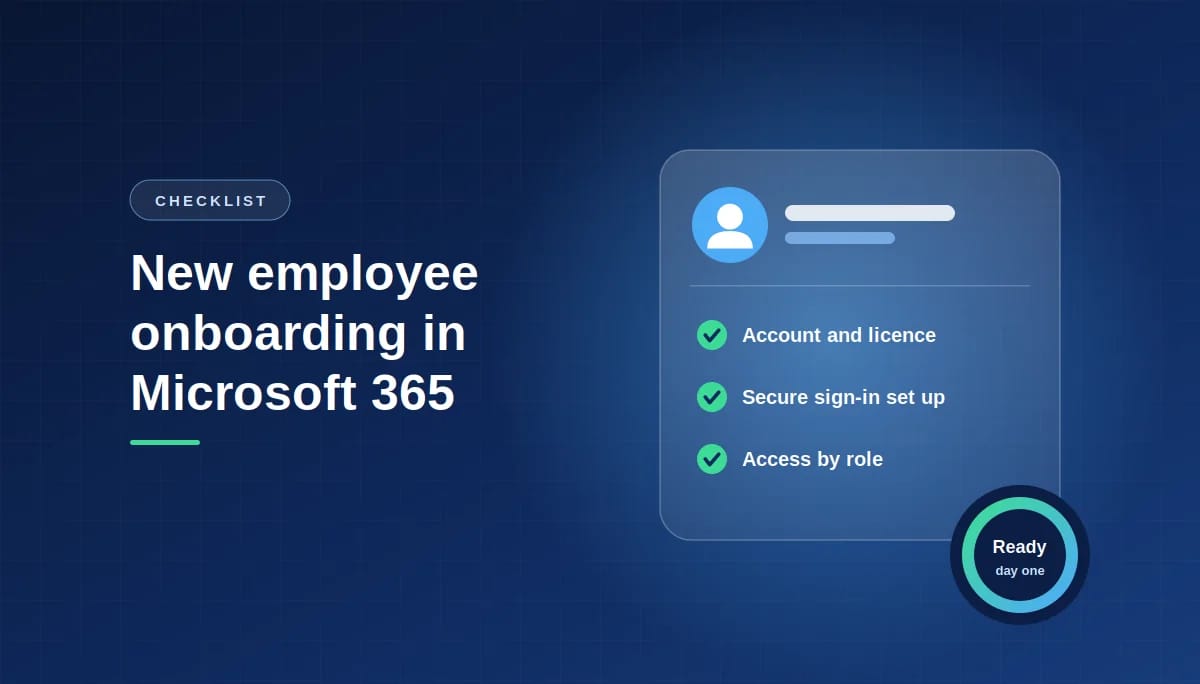
Everything to set up before, on and after a new hire’s first day, so they’re productive and secure from the start
A good Microsoft 365 onboarding does two jobs at once: it gets a new hire working on day one, and it makes sure their account is secure from the very first sign-in. The essentials are simple: create the account and licence before they start, add them to the right groups, give them a one-time Temporary Access Pass instead of a password, have them set up MFA or a passkey on day one, and cover the security basics in their first week. Use the checklist below for every new hire, and nothing gets missed.
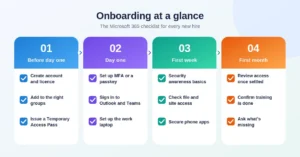
Before day one
☐ Create the user account and assign a licence. Set it up a few days ahead, so email and Teams are ready when they arrive.
☐ Add them to the right groups. Groups for their department give them the correct Teams, SharePoint sites and shared mailboxes automatically (more on this below).
☐ Issue a Temporary Access Pass instead of a password. Microsoft describes it as a time-limited passcode that can be configured for single use or multiple, which new hires use to onboard other passwordless authentication methods, such as Microsoft Authenticator, FIDO2 and Windows Hello for Business. Give it to them in person or by phone on their first morning, never by email.
☐ Prepare their laptop. If your laptops are managed through Intune, they can be ready to set themselves up when the new hire signs in.
☐ Decide who their manager is in Microsoft 365. It sounds minor, but it matters later: the manager is the person who automatically gets access to their OneDrive if they ever leave.
Day one
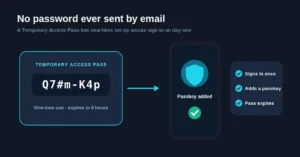
☐ Set up MFA or a passkey first. Using the Temporary Access Pass, the new hire signs in once and registers Microsoft Authenticator or a passkey. Do this before anything else, so their account is protected from the start. Our guide to why basic MFA isn’t enough anymore explains why passkeys are the stronger option.
☐ Sign in to Outlook, Teams and OneDrive. Check that email arrives, they can see their team’s channels and their files sync.
☐ Set up the work laptop. Confirm it’s encrypted, updated and signed in with their work account.
☐ Show them where files belong. A five-minute walkthrough prevents months of documents saved in the wrong place. Our comparison of OneDrive, SharePoint and Teams is a handy reference.
First week
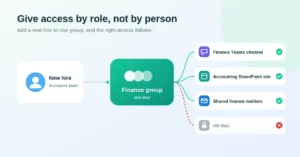
☐ Check their access matches their role. Confirm they can open what they need, and nothing they don’t. The Canadian Centre for Cyber Security’s baseline controls for small and medium organizations recommend limiting access to what each person needs for their job, which is easiest when access comes from groups rather than individual permissions.
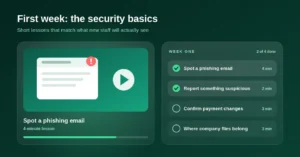
☐ Cover the security basics. Short lessons on spotting phishing, reporting something suspicious, confirming payment changes by phone and where company files belong. New staff are a favourite target, because they don’t yet know what a normal request from the boss looks like.
☐ Secure their phone apps. If they’ll use their own phone for work, make sure Outlook, Teams and OneDrive are protected. Our guide to securing work email on personal phones walks through it.
☐ Make sure they know who to call. Give them your IT support contact and a simple rule: if something looks wrong, report it straight away, with no blame for asking.
First month
☐ Review their access once they’ve settled in. Roles often shift in the first few weeks. Remove anything granted “just to get started” that they no longer need.
☐ Confirm their training is complete. Check the first-week lessons are done, and add any role-specific ones, such as payment verification for finance staff.
☐ Ask what’s missing or confusing. A two-minute check-in catches problems early, like a shared mailbox they can’t see or a file they’ve been saving locally because they couldn’t find the right site.
Common onboarding gaps we see
- Passwords sent by email, sometimes to a personal address, where they sit in an inbox for years.
- Access copied from another employee, which quietly gives the new hire everything that person collected over time.
- MFA left “for later”, leaving a brand-new account protected only by a password in its first, most vulnerable weeks.
- No manager set in Microsoft 365, which causes problems when the person eventually leaves.
- Security training skipped because the first week is busy.
Example: a smooth first morning
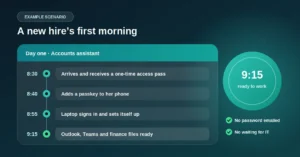
Example scenario: a new accounts assistant starts at a 20-person Ottawa firm at 8:30. Her account, licence and Finance group membership were set up the week before. On arrival, the office manager reads her a one-time Temporary Access Pass. By 8:40 she has added a passkey on her phone; by 8:55 her laptop has signed in and set itself up; and by 9:15 she’s in Outlook and Teams with the finance files she needs, and nothing she doesn’t.
No password was ever written down or emailed, nobody waited for IT, and her account was protected from the first minute. And when she eventually moves on, the same groups make offboarding just as tidy; our guide to who still has access to your Microsoft 365 covers that side.
Common questions about Microsoft 365 onboarding
1. What should be set up before a new employee starts?
Create their account and licence, add them to the right groups, prepare their laptop, set their manager in Microsoft 365 and issue a Temporary Access Pass for their first sign-in.
2. What is a Temporary Access Pass?
A time-limited passcode from Microsoft that lets a new hire sign in once and register secure sign-in methods, such as Microsoft Authenticator or a passkey, without being given a password.
3. Should we email new hires their password?
No. Passwords in email can sit in inboxes for years. Give a Temporary Access Pass in person or by phone instead.
4. When should a new employee set up MFA?
On day one, before anything else, so the account is protected from its very first use.
5. How do we give the right access to new staff?
Use groups for each department or role. Adding someone to a group gives them the correct Teams, SharePoint sites and shared mailboxes automatically.
6. Should we copy access from an existing employee?
It’s best avoided. Copying access often passes on permissions the other person collected over time but the new hire doesn’t need.
7. What security training do new hires need?
Short lessons on spotting phishing, reporting suspicious messages, confirming payment changes by phone and where company files belong, plus role-specific lessons for finance or leadership.
8. Why does the manager field matter in Microsoft 365?
When an employee leaves and their account is deleted, their manager automatically gets access to their OneDrive files. Without a manager set, nobody does.
9. How long does Microsoft 365 onboarding take?
With a checklist and groups in place, the setup before day one takes well under an hour, and the new hire can be working within an hour of arriving.
10. Do we need Business Premium for this checklist?
Most steps work on any Microsoft 365 business plan. Device management and app protection for phones need Intune, which is included in Business Premium.
This article is general information, not legal advice.
Sources
Microsoft Learn: Configure Temporary Access Pass to register passwordless authentication methods · Canadian Centre for Cyber Security: Baseline cyber security controls for small and medium organizations
Similar
Our newsroom highlights the milestones shaping Shipora and the markets we serve.