
OneDrive vs SharePoint vs Teams: Where Should Business Files Live?
A plain-English comparison for small businesses, and a simple rule for deciding where every file goes
Short answer: OneDrive is for your own work, SharePoint is for files the business owns, and Teams is the place where your team works on them. Behind the scenes, Teams doesn’t really store files itself: files shared in a Teams channel live in SharePoint, and files shared in a private chat live in the sender’s OneDrive. The most important rule for a small business is simple. Anything the business needs to keep should never live only in one person’s OneDrive, because it’s tied to that person’s account and is deleted after they leave.
Most small businesses move to Microsoft 365 for email and end up with three places to store files, without anyone deciding which one to use for what. The result is familiar: client files in someone’s personal OneDrive, project documents scattered across Teams chats, and nobody sure where the latest version is. This comparison explains what each option is for, where your files actually end up, and how to set things up so files stay organized and stay with the business.
OneDrive vs SharePoint vs Teams at a glance
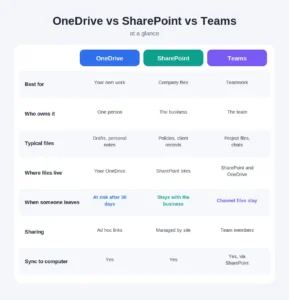
| OneDrive | SharePoint | Teams | |
|---|---|---|---|
| Best for | Your own work | Company files | Teamwork |
| Who owns it | One person | The business | The team |
| Typical files | Drafts, personal notes | Policies, client records | Project files, chats |
| Where files live | Your OneDrive | SharePoint sites | SharePoint (channels) and OneDrive (chats) |
| When someone leaves | Deleted 30 days after the account by default | Stays with the business | Channel files stay |
| Sync to your computer | Yes | Yes | Yes, through SharePoint |
What is OneDrive best for?
OneDrive is your personal workspace in Microsoft 365. Microsoft’s own advice is straightforward: if you’re working on a file by yourself, save it to OneDrive.
Best for: drafts, personal notes, work in progress and files you haven’t shared yet. It syncs to your computer, so it feels like a normal folder, and you can reach your files from any device.
Watch out for: OneDrive belongs to one person’s account. When that account is deleted, Microsoft keeps the OneDrive for a default retention period of 30 days, after which it moves to a recycle bin and is eventually gone for good. If a departing employee kept client files only in their OneDrive, the business can lose them. It’s also common for OneDrive files to be shared with long lists of people through individual links, which is hard to keep track of.
What is SharePoint best for?
SharePoint is the business’s shared storage. Microsoft describes it as the service that provides the content services for all files in Microsoft 365, including the files you work with in Teams, even if people never open SharePoint directly.
Best for: files that belong to the business rather than any one person, such as policies, templates, HR documents, client records and anything you’d need to keep if someone left. Permissions are managed at the site level, so access is easier to control and review.
Watch out for: SharePoint can become messy if sites are created without a plan, or if broad groups like “everyone” are given access by default. A simple structure, which we cover below, avoids both problems.
Where do Teams files actually go?

Teams is a window into your files, not a separate storage system. According to Microsoft, team files are stored in SharePoint sites, and chat files are stored in OneDrive. Each team has its own SharePoint site, and files posted in a channel are saved in that site’s document library.
Files shared in a private or group chat work differently: they’re stored in the sender’s OneDrive, in a folder called “Microsoft Teams Chat Files”, and shared only with the people in the chat. That detail matters. A contract sent to a colleague in a chat lives in your OneDrive, so it’s subject to the same risks as any other OneDrive file when you leave.
Best for: day-to-day teamwork, such as project files, discussions and meetings, all in one place.
Watch out for: important files shared only in chats, and new teams created for every small task, which quickly multiplies SharePoint sites nobody manages.
Which should you use? A quick decision guide

Two questions settle almost every case:
- Is the file just for you, for now? Save it in OneDrive.
- Is it for one team or project? Put it in that team’s Teams channel. If it’s for the whole business, put it on a SharePoint site.
A useful habit is to start in OneDrive and move the file once it becomes shared. Microsoft makes the same point: when your work becomes teamwork, it may make sense to move files from OneDrive to SharePoint.
What happens to files when someone leaves?

This is where the choice of location matters most. With Microsoft 365’s default settings, when a user account is deleted:
- Day 0: the user’s manager is automatically given access to the user’s OneDrive and receives an email about it.
- Day 23: a reminder is sent seven days before the OneDrive is deleted.
- Day 30: the OneDrive is moved to a recycle bin.
- Day 123: after 93 more days, it’s gone for good.
If no manager is set in Microsoft 365, nobody gets automatic access or a warning. Files in SharePoint and in Teams channels, on the other hand, stay exactly where they are, because they belong to the business, not to the person who left. Our guide to who still has access to your Microsoft 365 covers the rest of a safe offboarding process.
Want your files organized properly? We’ll review where your business files live today and set up a simple structure that keeps them safe when people come and go.
Example: a simple setup for a 20-user firm
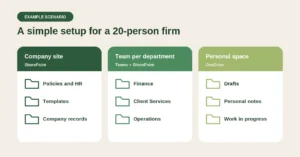
Example scenario: a 20-user professional services firm in Ottawa has client files spread across personal OneDrives and Teams chats. After reorganizing, it uses three layers:
- One company SharePoint site for policies, HR documents, templates and company records, readable by everyone and editable by a few people.
- One team per department, such as Finance, Client Services and Operations, with project files kept in channels rather than chats.
- OneDrive for each person’s drafts and work in progress, with a simple rule that finished or shared files move to the right team or site.
Nobody has to remember where things are anymore, and when an employee leaves, nothing the business needs disappears with their account.
Our recommendation
For most small businesses, use all three, each for its own job. Keep personal work in OneDrive, do teamwork in Teams channels, and keep company-wide files on a SharePoint site. Agree one rule with your team, that anything the business needs to keep is never stored only in OneDrive or in a chat, and back it up with a sensible offboarding process. It’s worth reviewing who can access each site every few months too; our guide to oversharing in SharePoint and OneDrive explains how. And remember that Microsoft 365 isn’t a full backup on its own, which our guide on whether your Microsoft 365 data is actually backed up covers in detail.
Common questions about OneDrive, SharePoint and Teams
1. What’s the difference between OneDrive and SharePoint?
OneDrive is personal storage tied to one user’s account. SharePoint is shared storage that belongs to the business, and it’s also where Teams channel files are kept.
2. Are Teams files stored in SharePoint or OneDrive?
Both. Files shared in a Teams channel are stored in the team’s SharePoint site, while files shared in a private or group chat are stored in the sender’s OneDrive.
3. Should business files be stored in OneDrive?
Only temporarily. OneDrive is fine for drafts and personal work, but files the business needs to keep should be moved to SharePoint or a Teams channel.
4. What happens to someone’s OneDrive when they leave?
With default settings, their manager gets access when the account is deleted, the OneDrive is deleted after 30 days, and it’s permanently removed 93 days after that.
5. Can I sync SharePoint and Teams files to my computer?
Yes. The OneDrive sync app can sync your own OneDrive and SharePoint libraries, including Teams channel files, so they appear in File Explorer or Finder.
6. Is SharePoint more secure than OneDrive?
Both are secured by Microsoft 365, but SharePoint is easier to manage for business files because access is controlled at the site level rather than through many individual sharing links.
7. Do we need a separate team for every project?
Usually not. For a small business, one team per department with a channel per project or client keeps things tidy and avoids dozens of unmanaged SharePoint sites.
8. Where should we store client files?
In a SharePoint site or a Teams channel with access limited to the people who need it, never only in an individual’s OneDrive or a chat.
9. Can we move files from OneDrive to SharePoint?
Yes. You can move or copy files from OneDrive into a SharePoint library or Teams channel, which is a good habit once a draft becomes shared work.
10. Does storing files in SharePoint mean they’re backed up?
Not fully. Microsoft 365 includes version history and recycle bins, but these have time limits, so a separate backup is still recommended for important business data.
This article is general information, not legal advice.
Sources
Microsoft Support: Should I save files to OneDrive or SharePoint? · Microsoft Learn: Describe Microsoft Teams with SharePoint and OneDrive · Microsoft Learn: OneDrive retention and deletion
Similar
Our newsroom highlights the milestones shaping Shipora and the markets we serve.