Is Your Microsoft 365 Data Actually Backed Up?
Is Your Microsoft 365 Data Actually Backed Up?
Ask most small business owners whether their email and files are backed up and the answer comes quickly: of course, it’s all in Microsoft’s cloud. It is a reasonable assumption. It is also, for most businesses, not quite true.
Microsoft runs an extraordinarily reliable service. Its datacentres are redundant, its hardware fails over automatically and your mailbox will not disappear because a server caught fire. But keeping the service running is not the same as keeping your data. If something is deleted, encrypted or overwritten, and nobody notices in time, Microsoft’s default settings will eventually let it go.
What follows is what Microsoft 365 actually keeps, how long it keeps it, how small businesses really lose data, and a month of work that closes the gap. It is written for organizations of twenty to fifty people in Ottawa, but the principles apply anywhere.
Microsoft keeps the lights on. Keeping your data is your job.
Cloud services work on a shared responsibility model. Microsoft is responsible for the infrastructure: the datacentres, the hardware, the network and the availability of the service. You are responsible for your data: who can access it, what happens when it is deleted, and whether you can get it back.
Microsoft is open about this. Its own documentation on shared responsibility states that, whatever cloud service you use, you own your data and identities and you are responsible for protecting them. That line rarely makes it into the sales conversation, but it is there, and it is worth taking seriously.
The confusion is understandable. Microsoft 365 does include recycle bins, version history and recovery windows, and they genuinely help. But they are designed to undo recent mistakes, not to serve as a long-term backup. The difference only becomes obvious when you need something that fell outside the window.
What Microsoft 365 actually keeps, and for how long
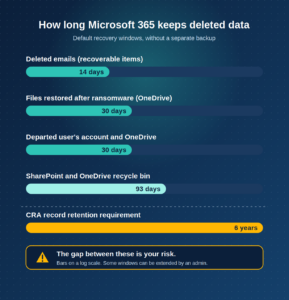
By default, permanently deleted emails can be recovered for 14 days, which an administrator can extend to 30. They sit in a hidden part of the mailbox called the Recoverable Items folder. Files deleted from SharePoint and OneDrive stay in a two-stage recycle bin for up to 93 days. If ransomware or a sync problem damages your OneDrive, you can roll it back to any point in the previous 30 days.
When an employee leaves and their account is deleted, their account and OneDrive are kept for 30 days by default, and the OneDrive then sits in a recycle bin for a short final period. After that, unless someone has taken a copy or extended the retention settings, the data is gone permanently.
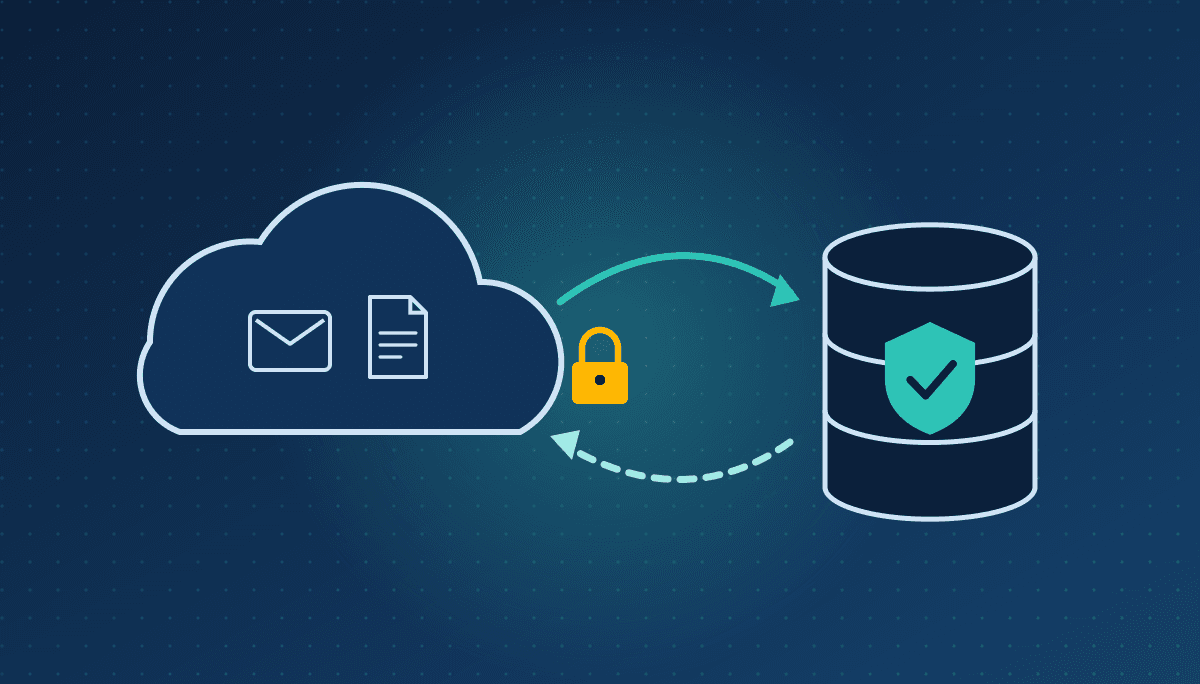
Some of these windows can be extended, and depending on your plan, retention policies can hold data for years. But retention is not the same as backup. Retention policies keep data from being deleted inside the same system. A backup is a separate copy you can restore from when the system itself, or the account controlling it, has been compromised.
How small businesses actually lose data
It is rarely dramatic. The most common cause is ordinary deletion: an employee clears out an old folder, or a departed staff member’s account is removed and nobody realizes their OneDrive held the only copy of a client’s files until two months later.
The second is ransomware. When a laptop is infected, the encrypted files sync up to OneDrive just like any other change. Version history and OneDrive restore can often recover them, provided someone notices within the window and the damage is limited to a few users.
The third is a compromised account. An attacker who gains administrator access can delete mailboxes, empty recycle bins and shorten retention settings. If every copy of your data lives inside the same tenant they now control, there is nothing outside it to fall back on.
The fourth is plain administrative error: a misconfigured sync, a bulk move gone wrong, a retention policy deleting more than intended. These are unglamorous, and they happen more often than attacks.
Cyber insurance: the questionnaire is now the real audit
Here is the shift that has done more to change small business security practice than any statute.
Cyber insurance applications used to be a formality. They are now detailed technical questionnaires, and the answers are treated as warranties. Insurers commonly ask whether you enforce multi-factor authentication across all users including remote access, whether endpoints are managed and encrypted, whether backups are tested and held offline, whether you have an incident response plan, and whether staff receive security awareness training.
Two risks follow. Answer inaccurately and your claim can be denied at exactly the moment you need it paid. Answer accurately but poorly and your premium reflects it, or you are declined.
The useful part is that the questionnaire gives you a free prioritized list. Whatever an insurer asks about is what an insurer has learned causes expensive claims. Pull out your last application and treat every uncomfortable answer as a work item.
CRA: six years is longer than any recycle bin
The Canada Revenue Agency generally requires businesses to keep books and records for six years from the end of the last tax year they relate to. For many small businesses, a significant share of those records live in email: invoices, receipts, contracts and correspondence about payments.
Set six years against a 93-day recycle bin and a 30-day departed-user window, and the gap is obvious. If a mailbox containing three years of supplier invoices is deleted when an employee leaves, the CRA will not accept “Microsoft deleted it” as an explanation.
Retention policies help here, and a proper backup helps more. The CRA also expects records to be kept at your place of business or residence in Canada unless it gives you written permission otherwise, so check where your backup provider stores its copies. A backup held outside the country may create the same residency questions as the tenant itself.
Cyber insurance asks about backups for a reason
Backups appear on almost every cyber insurance questionnaire, and the questions have become specific. Insurers commonly ask whether backups are kept separate from the production environment, whether they are protected against deletion or encryption by an attacker, how often they are taken and when you last tested a restore.
They ask because the difference shows up in claims. A business that can restore its data in a day pays a far smaller claim than one negotiating with a ransomware group. The Canadian Centre for Cyber Security makes the same point in its baseline controls for small and medium organizations, which list backing up and encrypting data as one of thirteen essential controls.
The word that matters most in those questions is “tested.” A backup nobody has ever restored from is a hope, not a plan.
Thirty days to a backup you can trust
Week one.
Find out what you have. Check your current recovery windows for email and files, confirm whether any retention policies exist, and ask the plain question: if our admin account were compromised tomorrow, is there any copy of our data outside Microsoft 365?
Week two.
Fix offboarding. Before any departed employee’s account is deleted, make sure their mailbox and OneDrive are reviewed, transferred or preserved. If your process needs more time, extend the default retention for deleted users’ OneDrive beyond 30 days.
Week three.
Put a real backup in place. Choose a dedicated Microsoft 365 backup service, whether Microsoft’s own Microsoft 365 Backup or a third-party product, that stores copies separately from your tenant, protects them from deletion, and keeps them for at least as long as your record-keeping obligations require. Check where the copies are stored.
Week four.
Test it. Restore a single mailbox, a deleted folder and a OneDrive to an earlier point. Time how long it takes and write down the steps. Then answer your cyber insurance backup questions again, honestly, with the results in front of you.
That is a month of part-time effort, and it turns “it’s in the cloud” into an answer you can stand behind when it matters.
If you would rather not do it alone, we help Ottawa businesses review their Microsoft 365 recovery options, set up backups that meet their record-keeping and insurance requirements, and test that restores actually work.
Book a conversation
Technety is an Ottawa IT consultancy working with small and mid-sized organizations on Microsoft 365, security and day-to-day IT support. This article is general information, not legal or tax advice.
Sources
Microsoft Learn: Shared responsibility in the cloud · Microsoft Learn: Change how long permanently deleted items are kept for an Exchange Online mailbox · Microsoft Learn: Recoverable Items folder in Exchange Online · Microsoft Support: Restore your OneDrive · Microsoft Support: Manage the Recycle Bin of a SharePoint site · Microsoft Learn: OneDrive retention and deletion · CRA: Where to keep your records and for how long · Canadian Centre for Cyber Security: Baseline cyber security controls
Similar
Our newsroom highlights the milestones shaping Shipora and the markets we serve.