The 10 Microsoft 365 Security Settings Every Small Business Should Turn On Today
A plain-language checklist for small businesses to close the gaps attackers use most
Most small businesses move to Microsoft 365 for email, Teams, and file sharing. Very few realise that the security settings that matter most are either turned off by default or left at loose “out of the box” levels that favour convenience over protection.
That gap matters. Attackers don’t need to break into your office or crack your firewall. They only need one employee’s password, and Microsoft 365 is where your email, client files, invoices, and financial conversations live.
This post walks business owners and office managers through ten settings that close the most common doors attackers use, in plain language, with no IT degree required.
Why default settings aren’t enough
Microsoft builds Microsoft 365 to work for millions of organisations, from two-person shops to global enterprises. To keep setup simple, many protections are optional or need an administrator to switch them on. If no one ever reviewed your tenant after it was first set up, it’s likely still running on those defaults.
The good news is that most of the protections below are already included in the licence you pay for. The cost of turning them on is a few hours of configuration, not a new product.

The 10 settings that make the biggest difference
1. Require multi-factor authentication for everyone
Multi-factor authentication (MFA) asks users to confirm their sign-in with a second step, such as an app notification on their phone. Even if a password is stolen, the attacker can’t get in without that second factor. Turn it on for every user, not just managers, using Security Defaults or Conditional Access policies.
2. Block older sign-in methods
Legacy sign-in protocols can’t handle MFA, which makes them an easy way around it. Microsoft has retired most of them, but some, such as SMTP authentication for older printers and scanners, may still be enabled. Turn off anything you don’t actively need.
3. Lock down your administrator accounts
Admin accounts are the keys to the whole tenant. Keep the number of Global Administrators small, give admins a separate account they only use for admin work, and require the strongest MFA on those accounts.
4. Stop automatic email forwarding to outside addresses
One of the first things an attacker does after breaking into a mailbox is quietly forward a copy of every email to themselves. Blocking automatic forwarding to external domains shuts this down, and it’s one of the clearest warning signs when someone tries.
5. Make sure audit logging is on
Audit logs record who signed in, from where, and what they changed. If something goes wrong, these logs are how you find out what happened. Confirm that unified audit logging is enabled; without it, an investigation has very little to work with.
6. Turn on protection for links and attachments
If your plan includes Microsoft Defender for Office 365 (Business Premium does), enable Safe Links and Safe Attachments. They check links when they’re clicked and open attachments in a safe environment before delivering them. Microsoft’s preset security policies are an easy way to apply recommended settings.
7. Tighten file sharing in SharePoint and OneDrive
By default, users may be able to create “anyone with the link” shares that work for anyone who receives the link, including people outside your company. Change the default to “specific people” and set expiry dates on external links so files don’t stay exposed forever.
8. Stop users from approving risky third-party apps
Some phishing attacks don’t steal passwords at all. They trick users into approving a malicious app that then reads their mail and files. Restrict users from granting app permissions on their own, and set up an admin approval process instead.
9. Manage the devices that access company data
Laptops and phones that hold company email need basic protections: a screen lock, encryption, and up-to-date software. With Microsoft Intune, included in Business Premium, you can require these and remotely wipe company data from a lost or stolen device.
10. Use Secure Score as your ongoing checklist
Microsoft Secure Score rates your tenant’s security and lists recommended improvements, ranked by impact. Review it monthly. Your score will drift as Microsoft adds new features and your business changes, and Secure Score shows you where.
A simple way to prioritise
If you can’t do everything this week, work in this order. Start with MFA, admin account protection, and blocking external forwarding; those three stop the majority of account takeover and email fraud attempts. Next, tighten file sharing and app consent. Finally, add device management and settle into a monthly Secure Score review.
For most businesses with fewer than 100 users, the first group can be completed in an afternoon. The full list is usually a few days of work spread over a couple of weeks, depending on how many devices and users need to be brought into line.

Where attacks actually get in
Attacks on small businesses are rarely sophisticated. They follow predictable patterns: a stolen password with no MFA behind it, a convincing fake invoice email, a mailbox quietly forwarding messages to an outsider, or an old shared file link that was never switched off.
Microsoft has reported that MFA alone blocks over 99% of account compromise attacks. Business email compromise, where attackers impersonate a supplier, client, or executive to redirect payments, consistently ranks among the costliest cybercrimes reported to the FBI, with billions of dollars in losses each year.
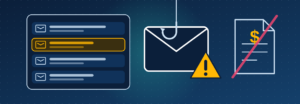
These aren’t rare events. They are the everyday ways small and midsize businesses lose money and client trust, and each one maps directly to a setting in the list above.
Prevention costs less than recovery
Recovering from a compromised account means investigating what was accessed, notifying clients, resetting systems, and sometimes absorbing a payment that went to the wrong bank account. For regulated industries like healthcare, legal, and finance, there may also be reporting obligations.
Set that against a few hours of configuration using tools you already pay for, and the decision is straightforward. Securing Microsoft 365 isn’t an extra project. It’s basic maintenance for the system your business runs on.
Similar
Our newsroom highlights the milestones shaping Shipora and the markets we serve.