Who Still Has Access to Your Microsoft 365?
How to offboard departing employees safely, in the right order, without losing email or files
When someone leaves a small business, the goodbye is usually handled well. There is a card, maybe a lunch, and someone collects the laptop and the office keys. The Microsoft 365 account is a different story. It often stays active for weeks, sometimes months, because nobody owns the job of switching it off.
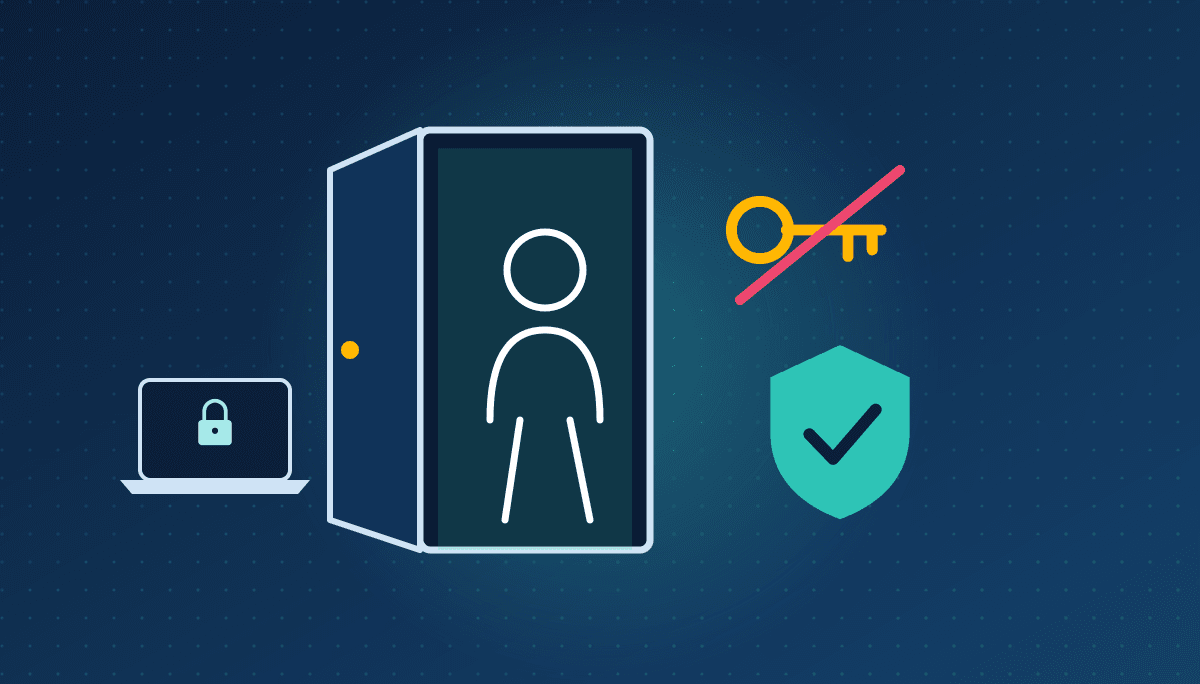
That gap matters. An active account belonging to someone who no longer works for you still has their email, their files, their Teams chats and every sharing link they ever created. It can still sign in from their phone. And if their password turns up in a breach a year from now, it is a working door into your business.
What follows is how to offboard someone from Microsoft 365 properly, in the right order, without losing anything you need to keep. It is written for organizations of twenty to fifty people in Ottawa, but the steps apply anywhere.
Why offboarding is a security problem, not an admin chore
Most business owners think of offboarding as paperwork. In practice it is one of the most common ways small businesses end up with access they cannot account for.
The risks are ordinary. A former employee still receives client emails on a personal phone. A departing manager’s OneDrive holds the only copy of a contract. A shared link to a client folder, created two years ago, still works for anyone who has it. A third-party app the employee connected keeps reading their mailbox long after they have gone.
None of these require bad intent. Most former employees would never misuse access. But you cannot show that access was controlled if you never removed it, and that matters when a client, an insurer or a regulator asks.
The order matters more than the steps
Microsoft publishes a step-by-step guide to removing a former employee, and the steps themselves are not complicated. What catches people out is doing them in the wrong order.
The most expensive mistake is deleting the account or removing the licence first. Microsoft is clear that when you remove a licence, the user’s data is held for 30 days, and after that their content, except documents stored in SharePoint, is permanently deleted. If nobody has copied the mailbox or moved the files by then, they are gone.
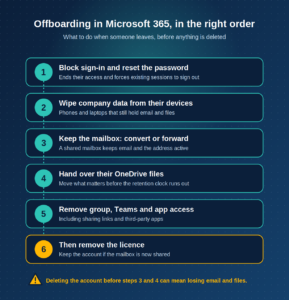
The right sequence is simple: cut off access first, then preserve what you need, then clean up, and only remove the licence at the end.
Cutting off access on day one
Start the moment the person’s last day ends, or immediately if the departure is not amicable.
Block their sign-in and reset their password. Microsoft notes that resetting the password forces the user to sign out, and that within about an hour, or when they leave the page they are on, they are prompted to sign in again and cannot. Blocking sign-in stops them from getting back in.
Then deal with devices. If company email and files sit on a phone or laptop they are keeping, remove company data from it. With device management in place, you can wipe business data from a personal phone without touching their photos or personal apps.
If the person was an administrator, check what admin roles they held and confirm no other accounts or app permissions were set up under their name.
Keeping what the business needs
Once access is cut off, preserve their work.
For email, the cleanest option is usually to convert their mailbox to a shared mailbox. It keeps all existing email and calendar items, the address keeps receiving messages from clients who have not heard the news, and colleagues can be given access. Shared mailboxes up to 50 GB do not need a licence, but the original account must not be deleted, because the shared mailbox depends on it.
For files, look at their OneDrive before anything else changes. By default, a deleted user’s OneDrive is kept for 30 days, and their manager receives access to it. That is enough time if someone acts, and nowhere near enough if nobody does. Move anything the business needs into a shared SharePoint site or a colleague’s OneDrive, where it will outlive the person who created it.
Privacy law expects you to control access
Under federal privacy law, a breach of security safeguards includes unauthorized access to personal information. A former employee’s account that still has access to client records is exactly the kind of gap that turns a small incident into a reportable one.
The Office of the Privacy Commissioner’s guidance on mandatory breach reporting applies to large and small businesses alike, and requires you to keep records of every breach of security safeguards for two years, reported or not. If you cannot say when a former employee’s access ended, you cannot write a credible record.
The Canadian Centre for Cyber Security’s baseline controls for small and medium organizations make the same point from the security side: control access on a least-privilege basis. Removing access when someone leaves is the most basic form of that control.
A repeatable offboarding process in thirty days
Week one.
Find the forgotten accounts. List every active Microsoft 365 user and compare it against your current staff list. Any account belonging to someone who has left gets blocked today, and its mailbox and files reviewed before anything is deleted.
Week two.
Write the checklist. One page is enough: block sign-in and reset the password, wipe company data from devices, convert the mailbox or set up forwarding, move OneDrive files, remove group and Teams memberships, review shared links and connected apps, and remove the licence last. Name who does each step.
Week three.
Tie it to HR. Offboarding should start when a departure is confirmed, not when someone remembers. Add the IT checklist to whatever process HR already follows for final pay and returning equipment, so neither happens without the other.
Week four.
Extend the safety net. If your process needs more than 30 days to review a departed user’s files, increase the OneDrive retention period for deleted users. Then run the checklist on your next departure, and fix whatever step took longest.
That is a month of part-time effort, and it means the next time someone leaves, their access leaves with them.
If you would rather not do it alone, we help Ottawa businesses clean up old accounts, build an offboarding checklist that fits their HR process, and make sure nothing important is lost along the way.
Book a conversation
Technety is an Ottawa IT consultancy working with small and mid-sized organizations on Microsoft 365, security and day-to-day IT support. This article is general information, not legal advice.
Sources
Microsoft Learn: Remove a former employee and secure data · Microsoft Learn: Prevent a former employee from logging in · Microsoft Learn: Remove and delete the licence from a former employee · Microsoft Learn: Convert a user mailbox to a shared mailbox · Microsoft Learn: OneDrive retention and deletion · OPC: What you need to know about mandatory reporting of breaches of security safeguards · Canadian Centre for Cyber Security: Baseline cyber security controls
Similar
Our newsroom highlights the milestones shaping Shipora and the markets we serve.