Who Can See Your Files?
Oversharing in SharePoint and OneDrive, and why it matters more once Copilot is switched on
Ask most business owners who can see the company’s files and the answer is confident: the people who need them. Ask the system the same question and the answer is often very different.
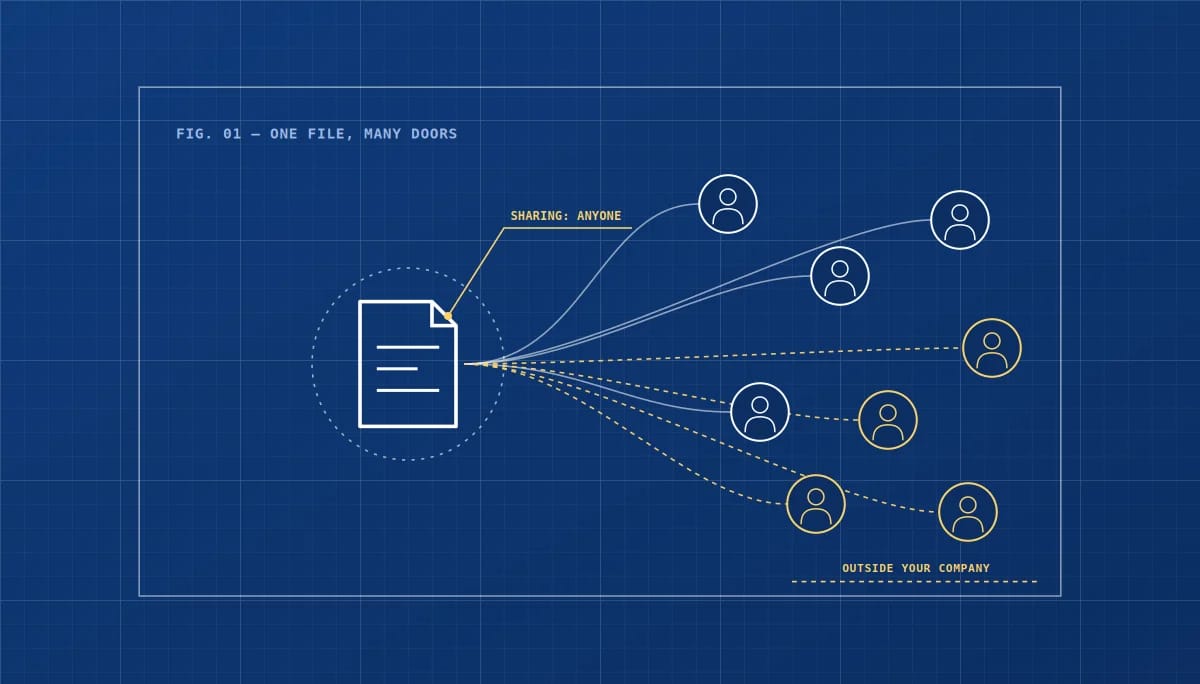
Every time someone in your business shares a file or folder from SharePoint, OneDrive or Teams, they create a link. Some of those links work only for the named person. Others work for anyone at your company who gets hold of them, and some work for anyone at all, inside or outside the business, with no sign-in. Over a few years, those links quietly add up.
What follows is how oversharing happens, why AI assistants like Copilot make it more visible, and a month of work that brings it back under control. It is written for organizations of twenty to fifty people in Ottawa, but it applies to anyone using Microsoft 365.
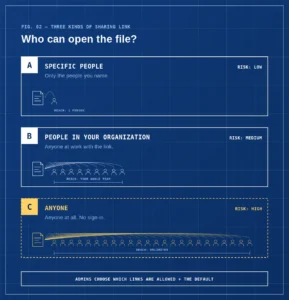
Three kinds of link, three very different risks
When someone shares a file, the type of link they choose decides who can open it. A “specific people” link only works for the people named. A “people in your organization” link works for anyone at your company who receives it, even if it’s forwarded. An “Anyone” link works for anyone at all who has it, with no sign-in required.
Microsoft lets administrators decide which of these links are allowed, which one is offered by default, and whether “Anyone” links expire, all from the organization-level sharing settings in the SharePoint admin center. The catch is that someone has to make those decisions. External sharing is turned on by default for SharePoint and OneDrive, and in tenants that were set up quickly and never reviewed, the most open options are often still allowed.
How oversharing happens
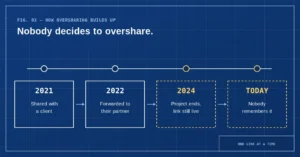
Nobody decides to overshare. It builds up one link at a time. A proposal is shared with a client using a link anyone can open. The client forwards it to a partner. The project ends, but the link stays active. A few years later, nobody remembers it exists.
The same happens inside the business. A manager shares an HR folder with “people in your organization” because it’s quicker than naming five colleagues. A finance spreadsheet is shared with a whole team that later grows to include new hires, contractors and temporary staff. None of it feels risky at the time, which is exactly why it accumulates.
There is a subtle trap for anyone tidying up, too. If external sharing is switched off and later switched back on, Microsoft notes that guests who previously had access regain it. Turning sharing off for a while is not the same as cleaning it up.
Why Copilot makes oversharing visible
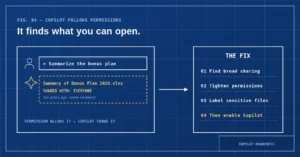
Until recently, an overshared file was mostly protected by obscurity. People could technically open it, but they had to know it existed and know where to look.
AI assistants change that. Microsoft is clear that Copilot only surfaces organizational data that a user has at least view permission to. That is reassuring, but it also means Copilot sees everything the user can technically open. Microsoft’s own guidance points out that this may include broadly shared files the user is unaware of.
So an employee asking Copilot to “summarize the bonus plan” may get a helpful answer drawn from a spreadsheet that was shared too widely years ago. Copilot hasn’t done anything wrong; it has simply found what the permissions allow. The fix isn’t to avoid AI. It’s to tighten the permissions first.
Why it matters beyond Copilot
Overshared files are a privacy problem whether or not anyone ever uses AI. Under federal privacy law, a breach of security safeguards includes unauthorized access to personal information, and the Office of the Privacy Commissioner’s guidance on mandatory breach reporting applies to businesses of every size. A client file reachable through a forgotten “Anyone” link is exactly the kind of gap that turns into a reportable incident.
The Canadian Centre for Cyber Security’s baseline controls for small and medium organizations make the same point from the security side: access should be limited to the people who need it. Sharing links are access, so they deserve the same attention as user accounts.
Thirty days to bring sharing under control
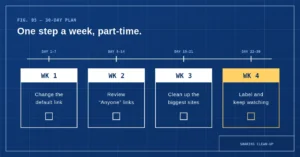
Week one.
Change the default link. In the SharePoint admin center, set the default sharing link to “specific people”, so the safest option is the one people get without thinking. Decide whether “Anyone” links should be allowed at all, and if they are, require them to expire after a set number of days.
Week two.
Review existing “Anyone” links. Find the files and folders shared with anyone, starting with the oldest and most sensitive. Remove the links that are no longer needed and replace the rest with links for specific people.
Week three.
Clean up the biggest sites. Focus on the SharePoint sites and Teams that hold finance, HR and client information. Check who has access, remove broad groups like “everyone” where they aren’t needed, and make sure former staff and old contractors are gone.
Week four.
Label and keep watching. Apply sensitivity labels to the most confidential files so they are protected wherever they go, and schedule a quarterly sharing review. If you plan to roll out Copilot, this is the point to do it, not before.
That is a month of part-time effort, and it means your files are seen by the people who need them, whether they’re searching by hand or asking an AI assistant.
If you would rather not do it alone, we help Ottawa businesses review their sharing settings, clean up oversharing in SharePoint and OneDrive, and prepare their Microsoft 365 environment for Copilot safely.
Sources
Microsoft Learn: Data, privacy and security for Microsoft 365 Copilot · Microsoft Learn: Microsoft 365 Copilot best practices with SharePoint · Microsoft Learn: Manage sharing settings for SharePoint and OneDrive · Microsoft Learn: Overview of external sharing in SharePoint and OneDrive · OPC: What you need to know about mandatory reporting of breaches of security safeguards · Canadian Centre for Cyber Security: Baseline cyber security controls
Similar
Our newsroom highlights the milestones shaping Shipora and the markets we serve.